Remove the 'Managed by Your Organization' Message from Windows, Chrome & Edge
🇬🇧 Two small scripts that remove the 'Managed by your organization' message: a .reg file for the whole system and a .bat file for Chrome and Edge. What they delete, how to use them, and what you lose.
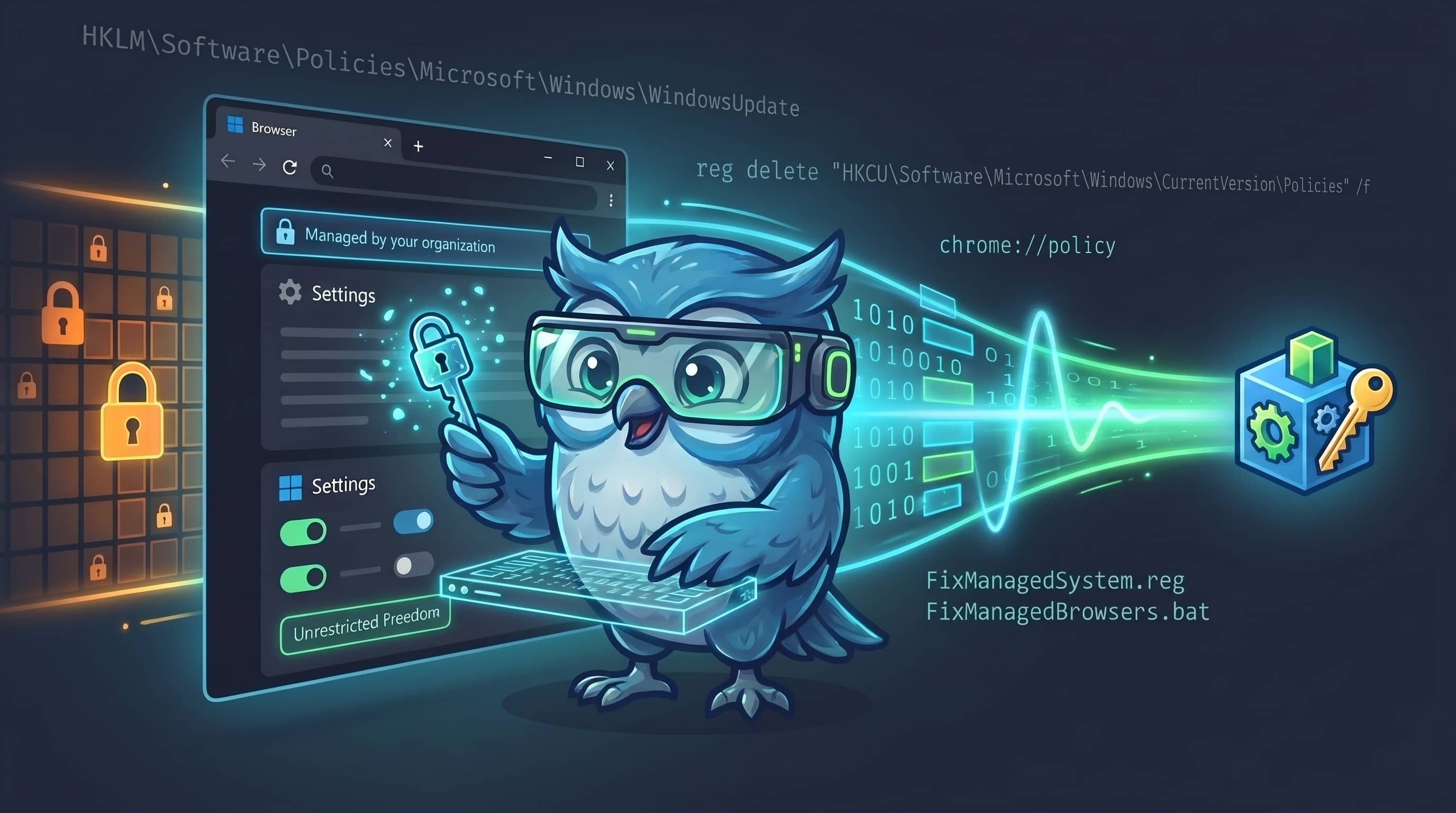
You open the Chrome menu and at the bottom sits a little building icon that says Managed by your organization. Or Windows Settings greets you with Some settings are managed by your organization (Turkish: Kuruluşunuz tarafından yönetiliyor). The strange part: it is your own PC, and nobody at any company has ever touched it.
Chrome, Edge and Windows itself show this notice whenever they find policy values in the registry. Group Policy and device management tools write those values on purpose, but so can anything else with admin rights: tweak and debloat tools, some installers, browser hijackers. Once the values exist, the message stays and settings get locked or grayed out, whether or not an organization is behind it.
Here are two small scripts that clean this up: FixManagedSystem.reg for the whole system and FixManagedBrowsers.bat for Chrome and Edge only. Below is what each line actually does.
Read this first. Both scripts delete registry keys; they do not just hide the message. Use them only on a PC you own. On a work or school computer those policies were put there on purpose, so removing them can break your access, get reverted, and may break your organization’s rules.
🔍 First, Check What Is Actually There
Before deleting anything, look at the policies the browsers see:
- Chrome:
chrome://policy - Edge:
edge://policy
Each page lists every active policy together with its source. Policies coming from the machine or user (the registry) are what the scripts below remove. A source that says Cloud points to an account or an admin console instead, and no registry cleanup will fix that.
🗂️ Which One Do You Need?
| Where do you see the message? | Use |
|---|---|
| Only in Chrome and/or Edge | FixManagedBrowsers.bat |
| Also in Windows Settings (Windows Update, Personalization…) or in other apps such as Firefox | FixManagedSystem.reg |
FixManagedSystem.regis the bigger hammer. If you only care about the browsers, start withFixManagedBrowsers.bat.
🧹 FixManagedSystem.reg: System-Wide Cleanup
In a .reg file, a key header with a minus sign ([-HKEY_...]) means delete this key and everything under it. This file contains nine of them and nothing else:
Windows Registry Editor Version 5.00

[-HKEY_LOCAL_MACHINE\Software\Microsoft\Windows\CurrentVersion\Policies]

[-HKEY_LOCAL_MACHINE\Software\Microsoft\WindowsSelfHost]

[-HKEY_LOCAL_MACHINE\Software\Policies]

[-HKEY_LOCAL_MACHINE\Software\WOW6432Node\Microsoft\Policies]

[-HKEY_LOCAL_MACHINE\Software\WOW6432Node\Microsoft\Windows\CurrentVersion\Policies]

[-HKEY_LOCAL_MACHINE\Software\Microsoft\Policies]

[-HKEY_CURRENT_USER\Software\Microsoft\Windows\CurrentVersion\Policies]

[-HKEY_CURRENT_USER\Software\Microsoft\WindowsSelfHost]

[-HKEY_CURRENT_USER\Software\Policies]
🔑 What Each Key Holds
| Key | What lives there |
|---|---|
...\Windows\CurrentVersion\Policies (HKLM, HKCU and the 32-bit WOW6432Node copy) |
Windows policy values: Explorer restrictions, UAC-related options under System and more |
HKLM\Software\Policies and HKCU\Software\Policies |
The main place Group Policy writes to: Windows Update, Defender, BitLocker, Chrome, Edge, Firefox, Office… |
HKLM\Software\Microsoft\Policies and its WOW6432Node copy |
Another Microsoft policy location |
WindowsSelfHost (HKLM and HKCU) |
Windows Insider / flighting settings |
📥 How to Use It
- Open Notepad and paste the code above.
- File → Save As, set Save as type to All files, and name it
FixManagedSystem.reg. Otherwise Notepad saves it asFixManagedSystem.reg.txt. - Double-click the file and accept the UAC prompt and the Registry Editor warning with Yes.
- Restart your PC.
💾 Back Up First
The script has no undo. Run this in a Command Prompt (Admin) to export every key it will delete. Keys that do not exist simply print an error, which is fine:
1
2
3
4
5
6
7
8
9
10
11
set B=%USERPROFILE%\Desktop\policy-backup
mkdir "%B%"
reg export "HKLM\Software\Microsoft\Windows\CurrentVersion\Policies" "%B%\1.reg" /y
reg export "HKLM\Software\Microsoft\WindowsSelfHost" "%B%\2.reg" /y
reg export "HKLM\Software\Policies" "%B%\3.reg" /y
reg export "HKLM\Software\WOW6432Node\Microsoft\Policies" "%B%\4.reg" /y
reg export "HKLM\Software\WOW6432Node\Microsoft\Windows\CurrentVersion\Policies" "%B%\5.reg" /y
reg export "HKLM\Software\Microsoft\Policies" "%B%\6.reg" /y
reg export "HKCU\Software\Microsoft\Windows\CurrentVersion\Policies" "%B%\7.reg" /y
reg export "HKCU\Software\Microsoft\WindowsSelfHost" "%B%\8.reg" /y
reg export "HKCU\Software\Policies" "%B%\9.reg" /y
To undo, double-click the exported files you want back.
⚠️ What You Lose
Everything under those keys goes, not just the “managed” flag:
- Policies you set on purpose are wiped: Windows Update deferrals, telemetry level, Defender and BitLocker policy values, locked-down features. For example, the registry method in my Recall post writes to
HKLM\SOFTWARE\Policies\Microsoft\Windows\WindowsAI, so you would have to apply it again. - UAC and Explorer policy values fall back to Windows defaults, and Insider settings are reset.
- Browser policies are cleared for every browser that reads them, Firefox included.
- On a PC that really is managed (domain, Intune…), the policies come back at the next refresh.
🌐 FixManagedBrowsers.bat: Chrome & Edge Only
This one is narrower. It closes the browser, then deletes the Chrome and Edge policy keys, plus the cloud management enrollment token that ties a browser to an organization’s admin console:
1
2
3
4
5
6
7
8
9
10
11
12
13
14
15
16
17
18
19
20
21
22
23
24
@Echo OFF
GOTO Fix
: Fix
taskkill /F /IM chrome.exe /T > nul
reg delete HKEY_LOCAL_MACHINE\Software\Policies\Google\Chrome /f
reg delete HKEY_LOCAL_MACHINE\Software\Policies\Google\Update /f
reg delete HKEY_LOCAL_MACHINE\Software\Policies\Chromium /f
reg delete HKEY_LOCAL_MACHINE\Software\Google\Chrome /f
reg delete HKEY_LOCAL_MACHINE\Software\WOW6432Node\Google\Enrollment /f
reg delete HKEY_CURRENT_USER\Software\Policies\Google\Chrome /f
reg delete HKEY_CURRENT_USER\Software\Policies\Chromium /f
reg delete HKEY_CURRENT_USER\Software\Google\Chrome /f
reg delete "HKEY_LOCAL_MACHINE\Software\WOW6432Node\Google\Update\ClientState\{430FD4D0-B729-4F61-AA34-91526481799D}" /v "CloudManagementEnrollmentToken" /f
taskkill /F /IM msedge.exe /T > nul
reg delete HKEY_LOCAL_MACHINE\Software\Policies\Microsoft\Edge /f
reg delete HKEY_LOCAL_MACHINE\SOFTWARE\Policies\Microsoft\EdgeUpdate /f
reg delete HKEY_LOCAL_MACHINE\Software\Policies\Chromium /f
reg delete HKEY_LOCAL_MACHINE\Software\Microsoft\Edge /f
reg delete HKEY_LOCAL_MACHINE\SOFTWARE\WOW6432Node\Microsoft\Edge\Enrollment /f
reg delete HKEY_CURRENT_USER\Software\Policies\Microsoft\Edge /f
reg delete HKEY_CURRENT_USER\Software\Policies\Chromium /f
reg delete HKEY_CURRENT_USER\Software\Microsoft\Edge /f
reg delete "HKEY_LOCAL_MACHINE\SOFTWARE\WOW6432Node\Microsoft\EdgeUpdate\ClientState\{1FAB8CFE-9860-415C-A6CA-AA7D12021940}" /v "CloudManagementEnrollmentToken" /F
exit
🔎 Line by Line
@Echo OFF,GOTO Fix,: Fix: hides the command echo and jumps to a label right below it. Purely cosmetic; removing these lines changes nothing.taskkill /F /IM chrome.exe /T > nul: force-closes Chrome (/F) by process name (/IM) including child processes (/T) and hides the output (> nul), so the browser reads the cleaned registry on its next launch. The Edge block does the same withmsedge.exe.reg delete <key> /f: deletes the key with everything under it, without asking for confirmation (/f).... /v "CloudManagementEnrollmentToken": deletes only that one value, the token that enrolls the browser in a cloud management console.
🧾 What Gets Deleted
| Target | Chrome | Edge |
|---|---|---|
| Browser policies | Software\Policies\Google\Chrome (HKLM, HKCU) |
Software\Policies\Microsoft\Edge (HKLM, HKCU) |
| Updater policies | HKLM\Software\Policies\Google\Update |
HKLM\Software\Policies\Microsoft\EdgeUpdate |
| Plain Chromium policies | Software\Policies\Chromium (HKLM, HKCU) |
same key again |
| Other browser keys | Software\Google\Chrome (HKLM, HKCU) |
Software\Microsoft\Edge (HKLM, HKCU) |
| Enrollment | WOW6432Node\Google\Enrollment + token value |
WOW6432Node\Microsoft\Edge\Enrollment + token value |
The Chromium lines appear in both blocks, so the second run just reports that the key is gone.
📥 How to Use It
- Save the code as
FixManagedBrowsers.bat(same All files trick as above). - Save your work first. The script force-kills Chrome and Edge, and unsaved data in open tabs is lost.
- Right-click the file and choose Run as administrator. Without admin rights the
HKEY_LOCAL_MACHINEdeletions fail with Access is denied and only the per-user ones go through. - Lines like
ERROR: The system was unable to find the specified registry key or valueare normal; that key did not exist. - Reopen the browser and check
chrome://policyandedge://policyagain.
The last line,
exit, closes the window the moment the script ends, so the output flashes by. Replaceexitwithpauseif you want to read it.
⚠️ What You Lose
Anything that was configured through these keys disappears: force-installed extensions, locked homepage or search engine, and update blocks. If you disabled Edge or Chrome updates with the updater policies, updating resumes. The extra Software\Google\Chrome and Software\Microsoft\Edge keys can also hold things like extensions that installers registered through the registry. Other Chromium browsers such as Brave or Vivaldi read their own vendor keys and are not touched.
🛟 Still Seeing the Message?
- It is gone from the registry but still shows up: the policy page’s source says Cloud. Sign out of the work or school account in that browser profile. For Windows, also check Settings → Accounts → Access work or school and disconnect anything that is not yours.
- It comes back after a while: something keeps writing the values again, such as a tweak tool, a startup script, a scheduled task or a real management agent. Find and remove that first; otherwise you will be running these scripts forever.
Stay safe and private.