Unlimited Sideload Infrastructure on iOS 26.2.1: SideStore and LiveContainer (Nightly)
🇬🇧 Bypass Apple's 3-app limit on iOS 26.2.1 using SideStore and LiveContainer without jailbreak. Computer-free sideloading guide with LocalDevVPN.
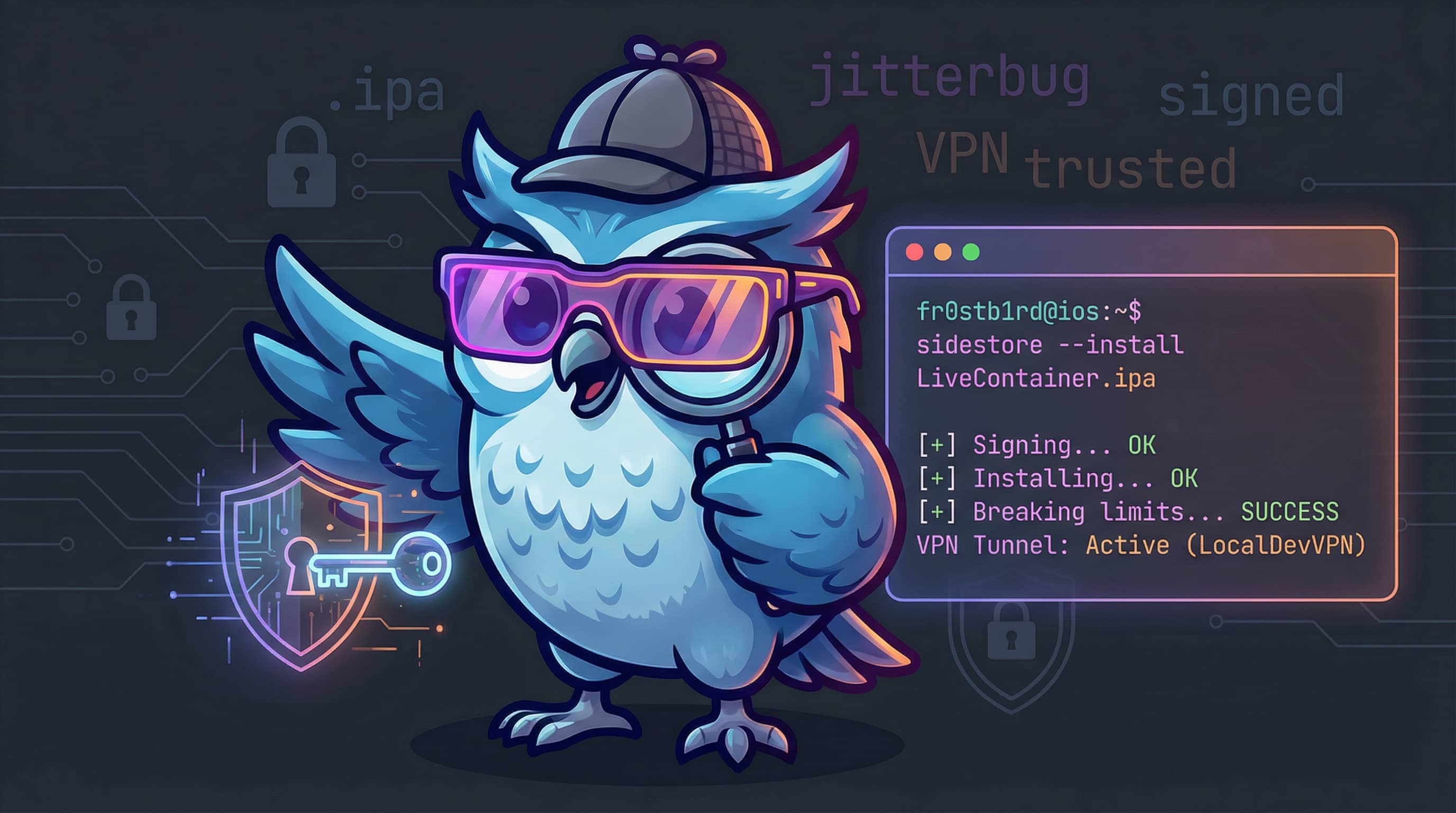
The lack of a jailbreak for iPhone 11 on iOS 26.2.1 doesn’t mean we’ve lost control of our devices. To bypass those annoying ecosystem restrictions (especially the 3-app limit) and break free from computer dependency, our best bet right now is the SideStore and LiveContainer combo.
In this guide, we’ll walk through installing these two tools as a single package and using LocalDevVPN to sign apps right on the device, no computer needed.
🇹🇷 Türkçe: iOS 26.2.1’de Sınırsız Sideload Altyapısı: SideStore ve LiveContainer (Nightly)
What is Sideloading and Why Do You Need It?
Apple’s closed ecosystem (the “Walled Garden”) normally makes it a hassle to install apps from outside the App Store. When you sideload apps using a standard free Apple ID, you hit two major roadblocks:
- The 7-Day Limit: Apps expire every 7 days. They stop working, and you have to plug your phone into a computer to reinstall them.
- The 3-App Limit: You can only have 3 sideloaded apps active at the same time.
This is exactly where SideStore and LiveContainer come to the rescue:
- SideStore: Eliminates the need for a computer. It creates a virtual VPN tunnel on your device to re-sign apps wirelessly and computer-free, fooling iOS into thinking it’s connected to a Mac.
- LiveContainer: Smashes through the 3-app limit. It takes up just one app slot but can run dozens of other JIT-enabled apps inside it.
In this guide, we’ll show you the cleanest way to set up this “freedom pack.”
Requirements
Before we jump in, make sure you have these ready at hand:
- Device: An iPhone/iPad running iOS/iPadOS 15.0 or higher with a passcode set (Test environment: iPhone 11, iOS 26.2.1).
- Computer: macOS, Windows, or Linux (we’ll use
iloaderon Arch Linux). - Apple Account: A standard Apple ID is sufficient (Developer account not required).
- Wi-Fi: Computer and phone must be on the same network.
- VPN Client: Download the LocalDevVPN app from the App Store.
More Details: You can find a detailed explanation of prerequisites in the official SideStore documentation.
Step 1: Device Preparation (LocalDevVPN)
For SideStore to work, it needs a special “loopback” VPN tunnel running on the device. We’ll use the LocalDevVPN app developed by the SideStore team for this.
IMPORTANT: Having a passcode set on your device is mandatory for VPN profile installation. Without a passcode, the VPN profile cannot be installed and the process will fail.
- Download LocalDevVPN from the App Store.
- Open the app and connect to the VPN. If prompted to “Allow VPN Configurations,” tap “Allow” and enter your passcode.
Important Note: This VPN must be turned on every time you want to install, update, or refresh apps in SideStore.
Step 2: Computer Installation (iloader)
Now for the computer part. Let’s quickly handle the iloader installation for your OS:
macOS
Windows
WARNING: 32-bit Windows versions and Windows 10 on ARM are not supported.
Most Windows versions are 64-bit. However, to check if you’re using an unsupported version:
- Open the Run dialog with Windows+R (or Command+R or Super+R).
- Type
control /name microsoft.system. The Control Panel will open.- Under the “System” tab, locate “System type.”
- If it says “32-bit Operating System,” your Windows version is not supported.
- If you have an “ARM64 processor” AND you’re using Windows 10, your Windows version is not supported.
- Download and install iTunes from the Microsoft Store or directly from Apple.
- Download the iloader installer as MSI (recommended) or as EXE.
- Run the installer.
Linux
WARNING: Only 64-bit distributions are supported.
Most Linux distributions are 64-bit. To check if you’re using a 64-bit distribution, open a terminal and run
uname -m. Expected output:x86_64
- Download and install the
usbmuxdpackage. It may be preinstalled with your distribution; otherwise, you can install it with your package manager. - Download and install iloader for your distribution:
- DEB for Debian/Ubuntu
- RPM for Fedora/openSUSE
- AppImage for others
- AUR package (
iloader-bin) for Arch Linux
Note: Community-maintained packages (like AUR) are available, but we cannot guarantee their safety or security. Always do your due diligence before installing unknown packages on your system.
Installing SideStore with iloader
- Connect your phone to the computer via USB and tap “Trust” on the “Trust This Computer” prompt.
- Launch the
iloaderapp and sign in with your Apple ID credentials. - Select your iPhone from the device list.
💡 Pro Tip: “Bundled” Installation
On the installation screen, instead of choosing SideStore (Stable), go straight for the rightmost option: LiveContainer + SideStore (Nightly). This is crucial.
Why?
- Savings: Normally, installing SideStore and LiveContainer separately would consume 2 app slots. This bundle combines both under a single app ID.
- Compatibility: The latest JIT patches required for iOS 26.x versions are typically found in Nightly builds.
Step 3: Device-Side Activation
Once installed, the SideStore icon will pop up on your home screen, but it won’t open just yet. Here’s what we need to do to get it running:
-
Trust the Certificate: Navigate to
Settings > General > VPN & Device Management. Tap on your Apple ID and confirm by tapping “Trust.” -
Enable Developer Mode: Go to
Settings > Privacy & Security, scroll to the bottom, and turn on Developer Mode. The device will restart; when it boots up, tap “Turn On” in the warning and enter your passcode. -
Start the VPN Tunnel: Open the LocalDevVPN app on your phone and tap the “Connect” button. When connected, you’ll see “VPN” in the status bar. (Note: This doesn’t disconnect your internet; it only opens a tunnel to the local signing server.)
-
Sign in to SideStore: Open the SideStore app. Sign in with the same Apple ID you used on the computer.
-
First Signing (Refresh): Go to the
My Appstab. You’ll see a button labeled “7 DAYS” next to the SideStore app. Tap it to refresh your certificate from the device. (If prompted to revoke or create a new signing certificate, tap “Yes” or “Refresh Now”.)
⚠️ About Pairing File: Your pairing file may expire if you update or reset your device. In this case, you may need to reconnect to a computer and generate a new pairing file.
Frequently Asked Questions (FAQ)
What is SideStore?
SideStore is an iOS application that allows you to sideload apps onto your iOS device using only your Apple ID. It resigns apps with your personal development certificate and uses a specially designed VPN to trick iOS into installing them. SideStore periodically “refreshes” your apps in the background to prevent them from expiring after the standard 7-day period.
What is JIT and How to Enable It?
JIT (Just-In-Time) compilation allows apps to compile code on the fly, running much faster. It is essential for emulators (like DolphiniOS). In SideStore, you can enable JIT by holding down on an app icon and selecting “Enable JIT” (for iOS 16 and earlier). LiveContainer also uses JIT to run apps with high performance.
Will the VPN Drain My Battery?
No, it won’t affect your battery life. This VPN only connects to your own device (localhost). No remote servers are used, and no data is sent externally. Therefore, there is no extra battery drain or data usage.
Is This Process Safe?
Yes. Your Apple ID is only used to communicate with Apple’s servers. Anisette data (required for login) is generated locally or provided via secure servers. SideStore is an open-source project and is continuously audited by the community.
Where to Find Apps? (IPA Archive)
Everything is set up, but where do we get these .ipa files? If you’re looking for a reliable and extensive archive, we recommend this community-maintained resource:
Here you can find modded apps, emulators, and many tools you won’t find on the App Store. Simply open the downloaded .ipa file with SideStore or LiveContainer!
Pro Tip: Adding Apps to Home Screen
If you want to launch your LiveContainer apps directly from your Home Screen without opening LiveContainer every time:
- Long press on the app you want to add inside LiveContainer.
- Select “Add to Home Screen” (or “Create App Clip”) from the menu.
- Go to your device’s Settings app.
- Tap on “Profile Downloaded” appearing at the top.
- Tap “Install” to confirm the profile.
Congrats! Your app icon is now on your Home Screen, ready to launch with a single tap.
Conclusion: Computer-Free Sideloading
That’s it for the computer! You now have both SideStore (store & signer) and LiveContainer (JIT app runner) installed on your device.
- Continuity: Every 7 days, just open LocalDevVPN, hit “Connect,” then go into SideStore and tap “Refresh All.” Simple as that.
- No Limits: Drop your downloaded
.ipafiles directly into LiveContainer and run them freely, without worrying about Apple’s 3-app limit.
Happy Hacking!